Complete Guide: OpenWebUI with Multiple Ollama Servers via Tailscale
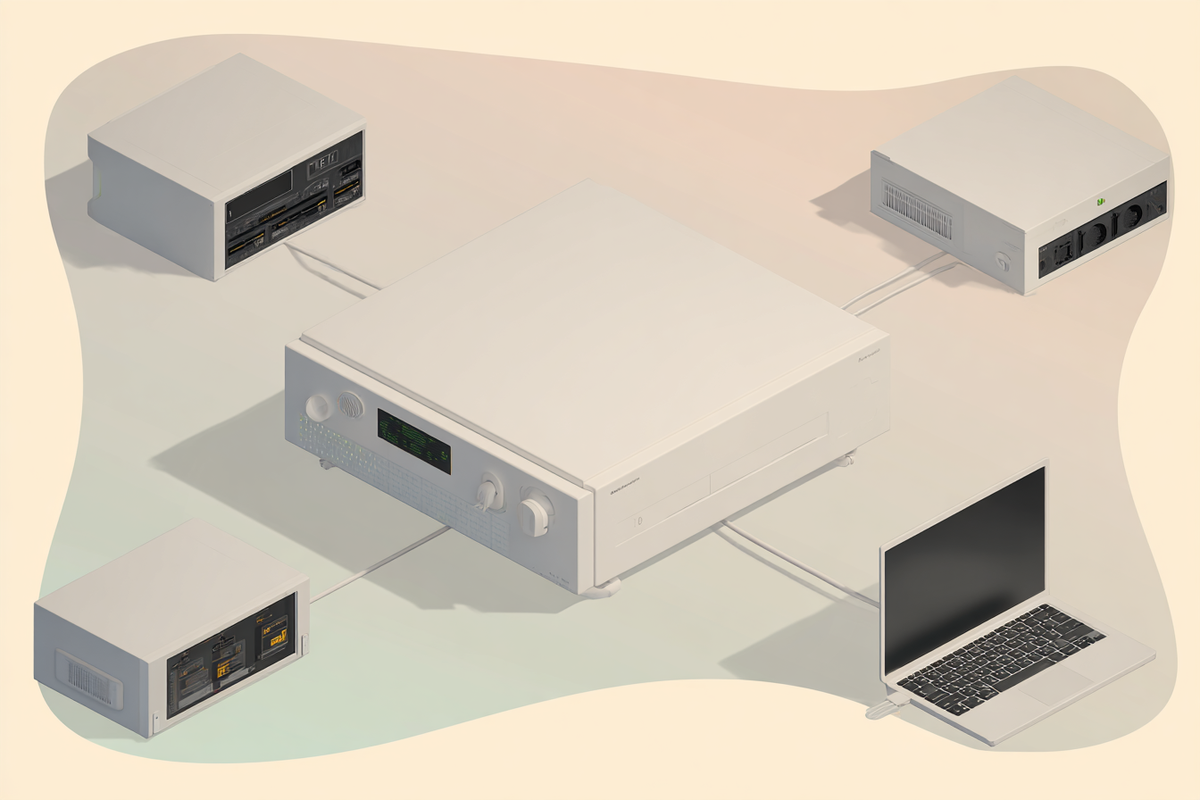
OpenWebUI multi-Ollama setup architecture with Tailscale VPN
🌟 Architecture Overview
Your setup will consist of:
- OpenWebUI running on a VPS (centralized web interface)
- 3 Ollama servers on different devices (GPU workstations, laptops, etc.)
- Tailscale VPN connecting all devices securely
- Automatic load balancing and failover built into OpenWebUI
🔧 Prerequisites
Before starting, ensure you have:
- A VPS with Docker installed
- 3 devices capable of running Ollama
- A Tailscale account
- Basic command-line knowledge
📋 Step 1: Setting Up Tailscale Network
1.1 Install Tailscale on All Devices
On VPS (Ubuntu/Debian):
curl -fsSL https://tailscale.com/install.sh | sh
On Device 1-3 (Linux):
curl -fsSL https://tailscale.com/install.sh | sh
On Windows devices:
Download from tailscale.com and install[1]
1.2 Connect All Devices to Tailscale
On each device:
sudo tailscale up
Verify connection:
tailscale ip -4
Note down the Tailscale IP addresses for each device:
- VPS: e.g.,
100.64.0.1 - Device 1: e.g.,
100.64.0.2 - Device 2: e.g.,
100.64.0.3 - Device 3: e.g.,
100.64.0.4
🤖 Step 2: Configure Ollama Servers
2.1 Install Ollama on Each Device
On Linux/macOS:
curl -fsSL https://ollama.com/install.sh | sh
On Windows:
Download from ollama.ai
2.2 Configure Ollama for Network Access
Important: By default, Ollama only listens on 127.0.0.1. We need to configure it to accept connections from other devices[2][3].
On Linux (systemd service):
sudo systemctl edit ollama
Add this configuration:
[Service]
Environment="OLLAMA_HOST=0.0.0.0:11434"
On Windows:
setx OLLAMA_HOST 0.0.0.0:11434
On macOS:
launchctl setenv OLLAMA_HOST 0.0.0.0:11434
2.3 Restart Ollama Services
Linux:
sudo systemctl daemon-reload
sudo systemctl restart ollama
Windows/macOS:
Restart the Ollama application.
2.4 Test Ollama Access
Test each server from your VPS:
# Replace with actual Tailscale IPs
curl http://100.64.0.2:11434/api/tags
curl http://100.64.0.3:11434/api/tags
curl http://100.64.0.4:11434/api/tags
2.5 Pull Models on Each Server
Download models on each Ollama server:
# Example: Download a model on each server
ollama pull llama3.2
ollama pull codellama
ollama pull mistral
🌐 Step 3: Deploy OpenWebUI on VPS
3.1 Create OpenWebUI with Multiple Ollama Endpoints
Method 1: Using Docker with Environment Variables
docker run -d -p 3000:8080 \
  -v open-webui:/app/backend/data \
  -e OLLAMA_BASE_URLS="http://100.64.0.2:11434;http://100.64.0.3:11434;http://100.64.0.4:11434" \
  --name open-webui \
  --restart always \
  ghcr.io/open-webui/open-webui:main
Method 2: Using Docker Compose
# docker-compose.yml
version: '3.8'

services:
  open-webui:
    image: ghcr.io/open-webui/open-webui:main
    ports:
      - "3000:8080"
    environment:
      - OLLAMA_BASE_URLS=http://100.64.0.2:11434;http://100.64.0.3:11434;http://100.64.0.4:11434
    volumes:
      - open-webui:/app/backend/data
    restart: always

volumes:
  open-webui:
Deploy:
docker-compose up -d
⚙️ Step 4: Configure OpenWebUI Admin Settings
4.1 Access OpenWebUI Admin Interface
- Navigate to
http://your-vps-ip:3000 - Create an admin account
- Go to Admin Settings → Settings → Connections
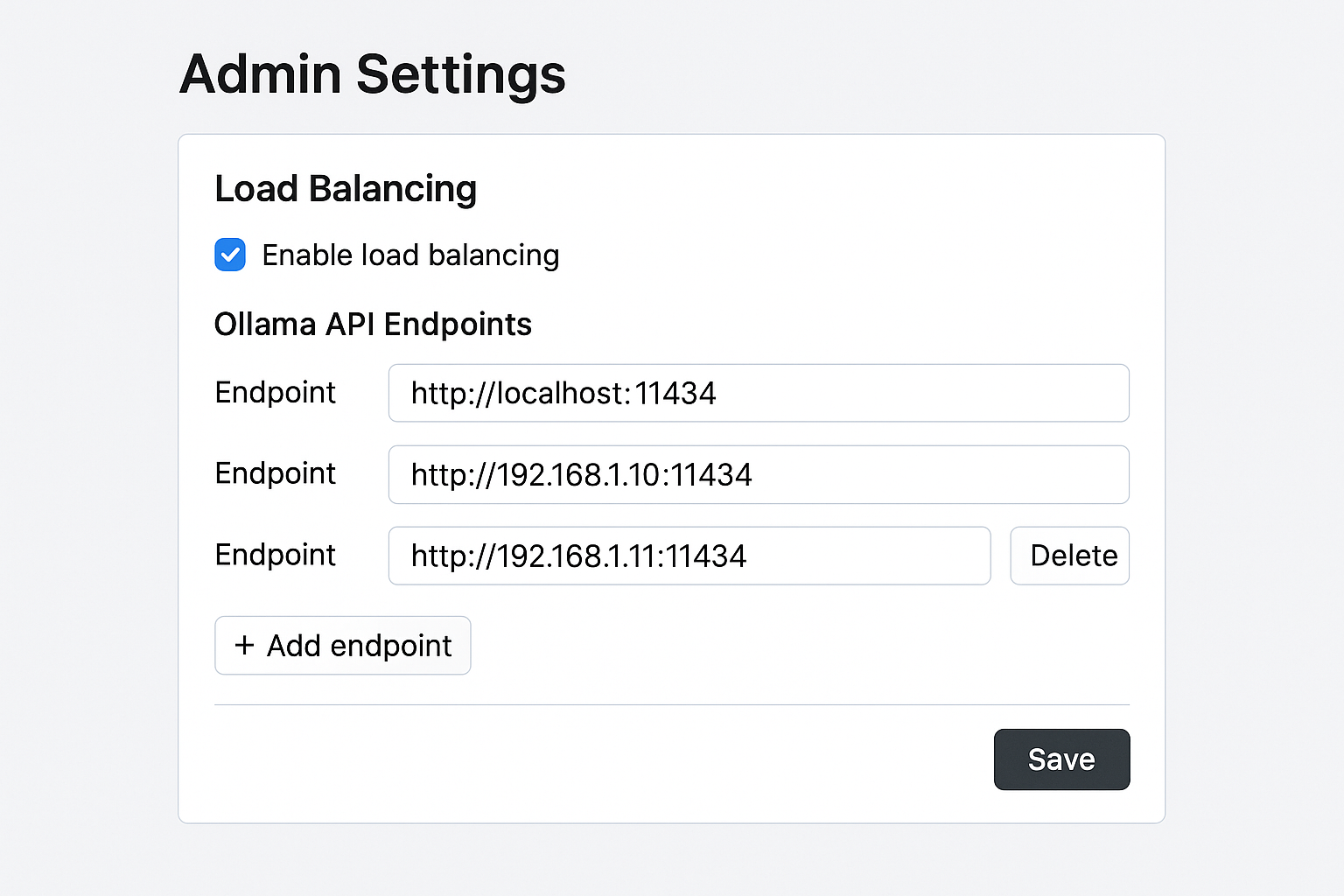
OpenWebUI admin interface for configuring multiple Ollama servers
4.2 Configure Multiple Ollama Endpoints
In the admin interface:
- Navigate to Connections → Ollama API
- Add multiple endpoints:
http://100.64.0.2:11434(Device 1)http://100.64.0.3:11434(Device 2)http://100.64.0.4:11434(Device 3)
Verify connections:
Each endpoint should show as "Connected" with a green indicator[4][5].
🔄 Step 5: Load Balancing and Failover Configuration
5.1 How OpenWebUI Handles Multiple Servers
OpenWebUI automatically provides:
- Round-robin load balancing across available servers[6][7]
- Automatic failover when servers are unavailable[8]
- Smart routing to servers containing specific models[9]
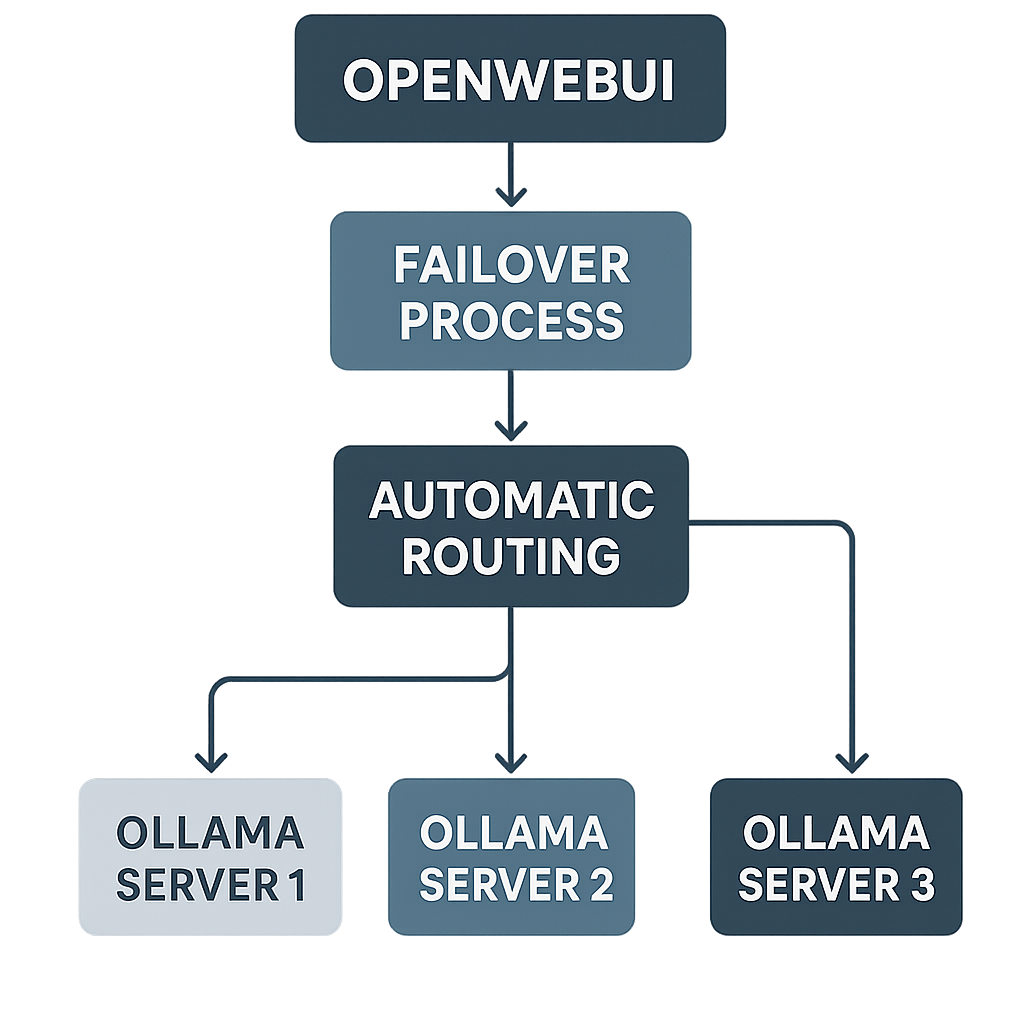
OpenWebUI failover and load balancing flowchart
5.2 Load Balancing Behavior
OpenWebUI's built-in load balancing:
- Distributes requests across all available Ollama instances
- Uses a simple round-robin approach by default
- Can be enhanced with weighted algorithms in future versions[8:1]
5.3 Failover Mechanism
Automatic failover process:
- OpenWebUI detects unresponsive server
- Automatically routes requests to available servers
- Continues monitoring failed servers
- Restores traffic when servers come back online
🛠️ Step 6: Advanced Configuration
6.1 Model Consistency
Ensure model consistency across servers:
# Update all models on all servers
ollama pull llama3.2
ollama pull codellama
ollama pull mistral
Important: All servers should have the same model versions and tags for optimal performance[7:1][9:1].
6.2 Health Monitoring Script
Create a health check script:
#!/bin/bash
# health_check.sh

SERVERS=(
  "100.64.0.2:11434"
  "100.64.0.3:11434"
  "100.64.0.4:11434"
)

for server in "${SERVERS[@]}"; do
  if curl -s "http://$server/api/tags" > /dev/null; then
    echo "✅ $server is healthy"
  else
    echo "❌ $server is down"
  fi
done
6.3 Custom Load Balancer (Optional)
For more advanced load balancing, consider using the Ollama Load Balancer tool:
# Install Ollama Load Balancer
wget https://github.com/BigBIueWhale/ollama_load_balancer/releases/latest/download/ollama_load_balancer

# Configure load balancer
./ollama_load_balancer \
  --servers "100.64.0.2:11434,100.64.0.3:11434,100.64.0.4:11434" \
  --port 11435
🔒 Security Considerations
6.1 Tailscale Security
Benefits:
- End-to-end encryption
- Zero-trust network architecture
- No exposed ports to the internet
- Automatic certificate management
6.2 Additional Security Measures
Firewall configuration:
# Only allow Tailscale traffic on Ollama port
sudo ufw allow from 100.64.0.0/10 to any port 11434
sudo ufw deny 11434
Authentication:
- Enable OpenWebUI authentication
- Use strong passwords
- Consider OAuth integration
🚀 Step 7: Testing and Verification
7.1 Test Load Balancing
Create test requests:
# Test multiple requests to see load distribution
for i in {1..10}; do
  curl -X POST http://your-vps-ip:3000/api/chat \
    -H "Content-Type: application/json" \
    -d '{"model": "llama3.2", "message": "Hello"}'
done
7.2 Test Failover
Simulate server failure:
- Stop Ollama on one device:
sudo systemctl stop ollama - Verify requests still work through OpenWebUI
- Restart the server:
sudo systemctl start ollama - Confirm it rejoins the pool
7.3 Monitor Performance
Check server metrics:
# Monitor system resources
htop
nvidia-smi  # For GPU usage
netstat -an | grep 11434
📊 Performance Optimization
8.1 Model Distribution Strategy
Distribute models based on hardware:
- High-end GPU server: Large models (70B+)
- Mid-range server: Medium models (13B-34B)
- Low-end server: Small models (7B and below)
8.2 Network Optimization
Optimize Tailscale performance:
# Enable subnet routing for better performance
sudo tailscale up --advertise-routes=192.168.1.0/24
8.3 Resource Management
Monitor and manage resources:
- Use
htopto monitor CPU usage - Use
nvidia-smifor GPU monitoring - Set up alerts for high resource usage
🔧 Troubleshooting Common Issues
9.1 Connection Problems
Issue: OpenWebUI can't connect to Ollama servers
Solutions:
- Verify Tailscale connectivity:
tailscale ping 100.64.0.2 - Check Ollama is listening on all interfaces:
netstat -an | grep 11434 - Verify firewall settings
- Test direct API access:
curl http://100.64.0.2:11434/api/tags
9.2 Load Balancing Issues
Issue: Requests only go to one server
Solutions:
- Check all servers are properly configured in OpenWebUI
- Verify model consistency across servers
- Review OpenWebUI logs:
docker logs open-webui
9.3 Performance Issues
Issue: Slow response times
Solutions:
- Check network latency between servers
- Monitor resource usage on each server
- Optimize model distribution
- Consider upgrading hardware
🎯 Best Practices
10.1 Maintenance
Regular maintenance tasks:
- Update models regularly across all servers
- Monitor server health and performance
- Keep Tailscale and OpenWebUI updated
- Backup OpenWebUI configuration
10.2 Scaling
To add more servers:
- Install Ollama on new device
- Add to Tailscale network
- Configure OLLAMA_HOST
- Add endpoint to OpenWebUI configuration
10.3 Monitoring
Set up monitoring:
- Use tools like Prometheus/Grafana
- Monitor API response times
- Track model usage statistics
- Set up alerts for server failures
🎉 Conclusion
You now have a robust, scalable setup with:
- ✅ One OpenWebUI instance on VPS
- ✅ Three Ollama servers connected via Tailscale
- ✅ Automatic load balancing and failover
- ✅ Secure network connectivity
- ✅ High availability architecture
This setup provides excellent performance, redundancy, and scalability for your AI workloads. The combination of OpenWebUI's built-in load balancing, Tailscale's secure networking, and multiple Ollama instances creates a professional-grade AI infrastructure that can handle multiple users and concurrent requests efficiently.
Happy AI computing! 🚀🤖
https://dev.to/coderberry/how-to-set-up-ollama-on-windows-for-network-access-via-tailscale-4ph6 ↩︎
https://aident.ai/blog/how-to-expose-ollama-service-api-to-network ↩︎
https://docs.openwebui.com/getting-started/quick-start/starting-with-ollama/ ↩︎
https://huggingface.co/spaces/open-webui/open-webui/blob/f3b054e21b69b8238d4077761d041bac54f6080f/backend/open_webui/routers/ollama.py ↩︎ ↩︎